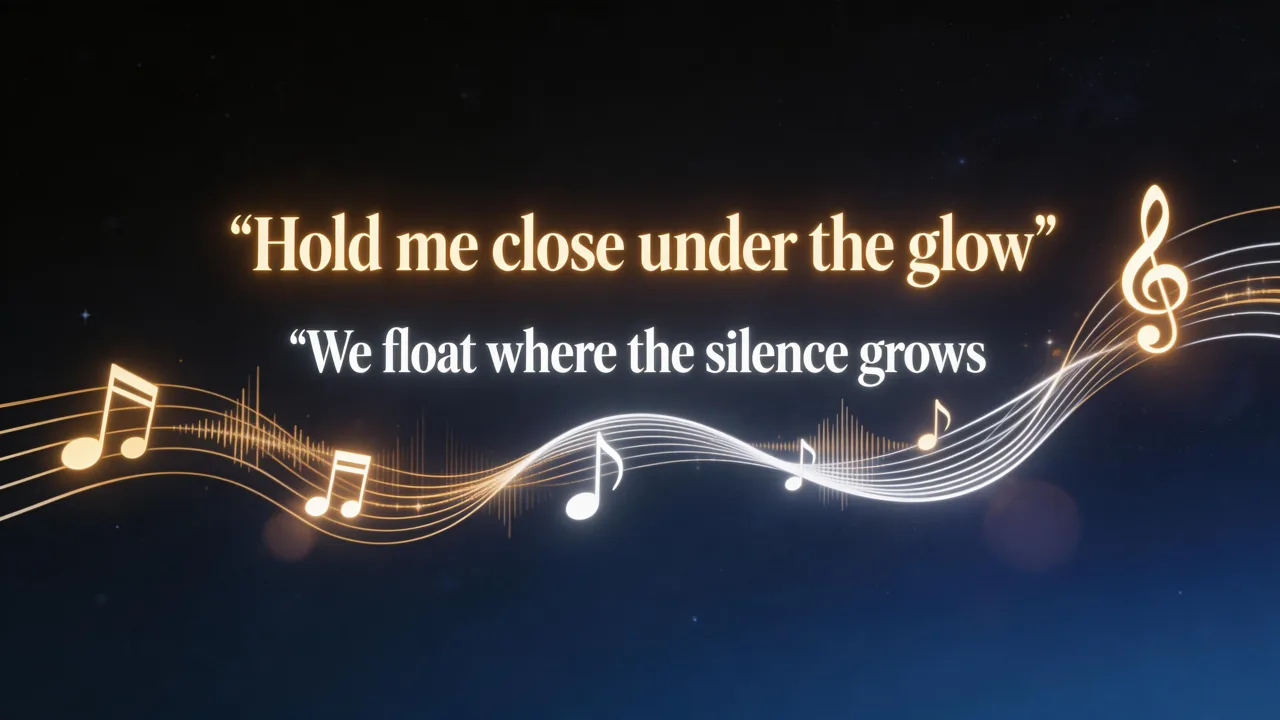
How to make a lyric video for free, step by step.
Upload a song, review the synced lines, pick a text animation, then export 1080p. This is the how-to. The tool that does the work lives on its own page.
Which guide should you read next? This page is the lyric-video tutorial. To make your lyric video here, use the free tool. If you want scenes, lip-sync, or a native 9:16 cut from the same song, go to the AI music video generator or How to Make a Music Video with AI.
The actual lyric tool and its sample output
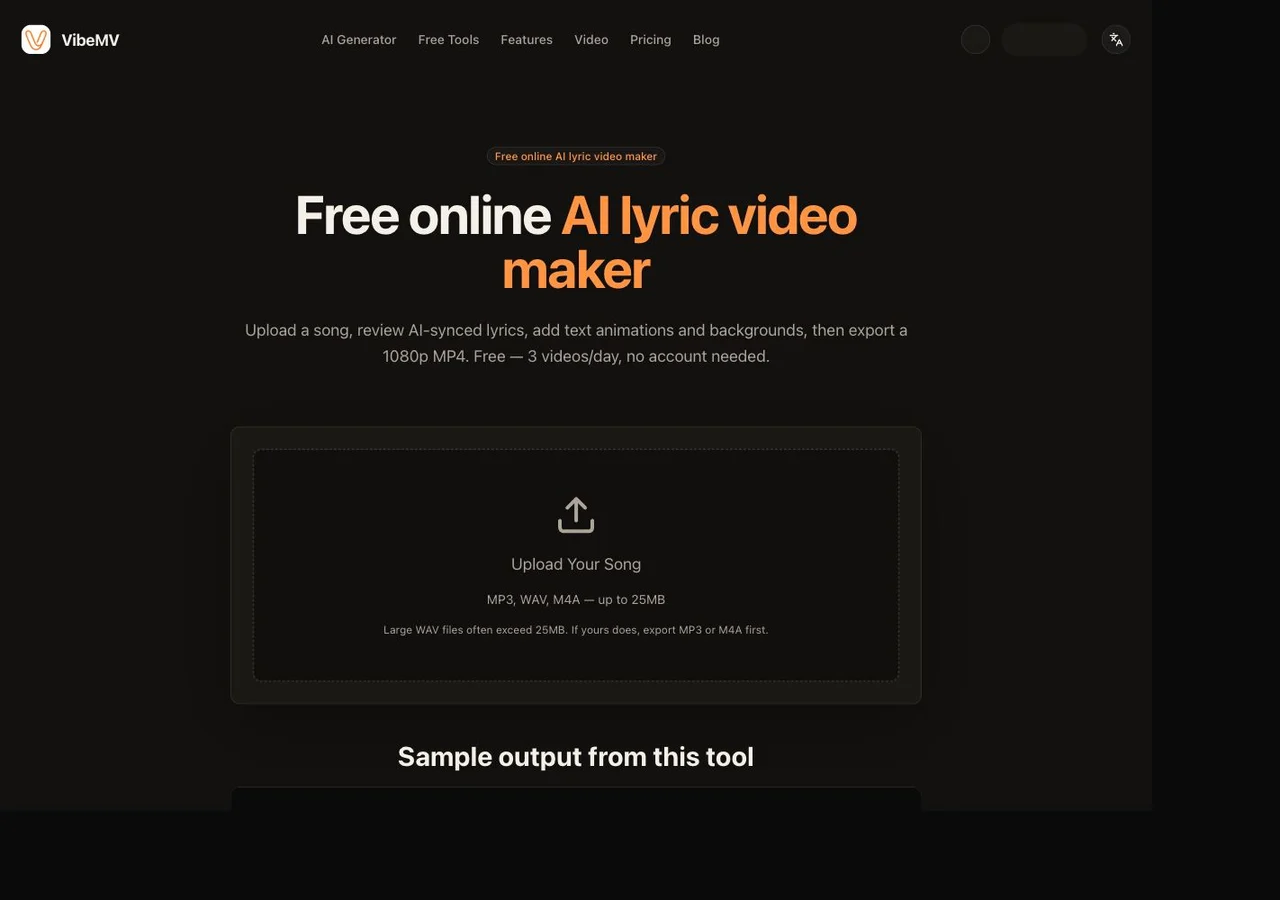
The screenshot is the real empty upload state, not a generated interface. The sample below was made with this tool on September 10, 2026 from our 24-second Suno demo, using karaoke, the default background and no account. The 1080p 16:9 export was converted to MP4 for playback. This demonstrates that one output; it does not guarantee transcription accuracy on another mix.
Play the sample once for readability and once for word highlights. For your own song, compare detected lines with the intended lyrics, fix names and repeated phrases, then preview again. Changing a line's wording can redistribute words inside its existing time span; it does not re-listen to the track or provide draggable word timestamps. Dense harmonies and unclear vocals still need careful review.
This separate tool accepts audio sources up to 25MB, allows 3 lyric-sync requests per IP per day without an account, and renders 1920×1080 at 30fps in 16:9. Supported browsers export MP4, with WebM fallback. A small Made with VibeMV mark remains; there is no paid watermark-off option here. An MP4 upload supplies audio, not moving background footage. Use the main product for generated scenes or a separately generated 9:16 version.
Open the lyric tool · Full AI tutorial
Quick Answer: How Do You Make a Lyric Video?
To make a lyric video, start with a finished vocal track, get the words onto a timeline, style the text, and export a file you can upload. You can do that in a timeline editor, a template app, or VibeMV's lyric video tool.
On VibeMV, you upload audio (MP3, WAV, M4A, MP4, OGG, or WEBM, up to 25MB). AI transcribes the vocal and estimates word-level timing. You review the lines, choose karaoke, typewriter, fade, or glow, optionally add a still background, then export 1920×1080 at 30fps.
You do not paste a lyric sheet to start, and you do not keyframe each word. You do need a mix where the lead vocal is audible.
What You Need
| Item | Required? | Why it matters |
|---|---|---|
| Song file | Yes | The tool times words from the audio. Instrumentals and buried vocals often fail. |
| Lyrics text | Optional | AI drafts the lines. You fix wording and spacing on review. There is no separate lyrics-only upload. |
| Timing | Automatic | Whisper estimates word timestamps. You can edit line text; you cannot drag start and end times. |
| Background still | Optional | JPEG, PNG, or WebP up to 10MB. No image gives a dark frame. This is not a video overlay. |
| Rights to the song | Yes | You are publishing a video of someone else's recording only if you are allowed to. |
Large WAVs often exceed 25MB. Export MP3 or M4A first if the upload is rejected.
Ways to Make a Lyric Video
These are approaches, not a ranked list of products.
Manual editor. Premiere, CapCut, or After Effects. You place every line, choose fonts, and time the track yourself. Best when you already have footage or a strict brand system.
Template app. Canva-style layouts with text boxes on a preset. Faster than a blank timeline, but you still align most words by hand.
Browser lyric tool. Upload the song and let AI draft the timed text, then style and export. That is the VibeMV path: this browser lyric-video workflow stays in the tab, renders locally, and sends audio only for lyric analysis.
If you need moving AI scenes instead of animated words, skip this format and use the AI music video generator.
Step 1: Prepare Lyrics and Audio
Use the final vocal mix, not a scratch bounce, when you have both. Cleaner lead vocals produce cleaner timestamps.
You do not have to type the full lyric first. Keep official lyrics nearby so you can correct names, slang, and repeated lines on the review screen.
Skip long silent pads if they push a WAV over 25MB. The lyric tool's hard limit is file size, not the 7-minute / 100MB ceiling used by the full VibeMV music-video workflow.
Step 2: Upload the Song
Open the free lyric video maker and upload the file. Accepted types are MP3, WAV, M4A, MP4, OGG, and WEBM.
An MP4 here is an audio source. The picture track is not kept. If you hoped the music video would stay on screen under the words, see Adding lyrics to an existing video.
No account is required. Lyric sync is capped at 3 requests per IP per day. Local text edits, previews and exports do not use this allowance.
Step 3: Sync and Review
AI runs Groq Whisper Large V3 with word-level timestamps, then groups words into lines.
Check every line before previewing and fix obvious transcription errors; for timing problems, see what text edits can and cannot fix.
Noisy mixes, stacked harmonies, and mumbled phrases are the usual miss. If no usable lyrics are detected, try a vocal-up mix.
Step 4: Style the Text
Pick one of four animations:
- Karaoke — words highlight in green as they are sung
- Typewriter — characters appear in time with the vocal, with a blinking cursor
- Fade — each line fades in and out
- Glow — white text with a pulsing neon shadow
Then add a background still if you want cover art or a single frame behind the words. Preview in the canvas before you export.
Step 5: Export
Export from the same tab. The canvas is 1920×1080 at 30fps. Supported browsers save MP4; others download WebM.
The video is rendered in the browser. Audio left the device for lyric analysis; the finished file is built locally.
A small Made with VibeMV mark is drawn on the frame. There is no in-tool toggle to remove it.
Step 6: Publish
YouTube. 16:9 1080p is the natural fit. A common title pattern is Artist – Song (Official Lyric Video). Put streaming links and credits in the description.
TikTok, Reels, Shorts. You can upload the 16:9 file, but those surfaces prefer 9:16. Crop or letterbox after export, or make a vertical version in a different tool.
Spotify Canvas. Canvas wants a 3–8 second 9:16 loop. This export is a full-length 16:9 lyric video, so trim and reframe elsewhere if you need Canvas.
How to Make a Lyric Video for Free (No Watermark?)
You can make a lyric video for free on VibeMV. The current terms:
- Price: free
- Account: not required
- Lyric-sync limit: 3 requests per IP per day; local previews and exports do not count
- Output: 1080p (1920×1080), 30fps, MP4 or WebM fallback
- Watermark: yes — a small Made with VibeMV mark on free exports
- Paid no-watermark option: none on this tool
If "free and clean" means no mark at all, use a manual editor you already pay for, or accept the mark. Do not expect a VibeMV subscription to strip it here. Paid plans apply to the AI music video generator (Hobby starts at $19/month), which is a different product: scene-based video, not this lyric overlay.
Adding Lyrics to an Existing Video vs Generating From Audio
You have a finished song and want words on screen. Use the lyric tool. That is generating a lyric video from audio (plus an optional still).
You have existing footage and want captions on that picture. This tool cannot do that. Upload a still grabbed from the footage if a frozen frame is enough. For moving video plus lyrics, use a timeline editor that supports captions or text layers.
You have a song and want a performance or story video, not kinetic type. That is not a lyric video. Start at the AI music video generator.
Common Mistakes
- Uploading a 40MB WAV. Compress to MP3 or M4A under 25MB.
- Skipping the review step. Whisper will mishear names and ad-libs.
- Expecting 9:16 out of the lyric tool. The canvas is 16:9 only.
- Expecting no watermark. Free exports include the mark.
- Treating an MP4 upload as a video overlay. Only the audio is used.
- Using an instrumental. There must be usable sung or spoken words.
- Publishing audio you do not control. Format fit is not a license.
When You Need a Full AI Music Video Instead
Switch when the words on screen are not the point: you want generated scenes, lip-sync on a character, Dance Mode hooks, or a native 9:16 render.
VibeMV's music-video path accepts MP3, WAV, AAC, M4A, FLAC, or AIFF, from 3 seconds to 7 minutes and up to 100MB. Default output is 720p in 16:9 or 9:16, with optional 2K upscale where supported. Base generation starts at 2 credits per second. The free tier includes 50 one-time credits for short tests. Commercial use starts with paid plans.
Open the AI music video generator, or follow How to Make a Music Video with AI for the section-by-section workflow.
When the words or timing are wrong
Compare the detected lines with the recording before exporting. A wrong word and a line that appears too early or too late need different decisions:
| What you see | What to check | What you can do here |
|---|---|---|
| A wrong word, with the line at the right time | The text in Review Your Lyrics | Correct that line, then listen to the preview again |
| Uneven Karaoke or Typewriter timing after an edit | Whether the edited text still matches the original aligned words | Changed wording is spread evenly over the existing line span; accurate text does not guarantee natural word timing |
| A whole line is early or late | The displayed line start and end | Text edits cannot move those boundaries; there is no word-timestamp drag editor or global offset control |
| A line is missing or repetitions are grouped incorrectly | The recording and the detected line list | The current UI cannot insert, split, merge or delete timed line records; adding the words to a neighboring line will not recover the missing timing |
| Most words are missing or nonsensical | Vocal clarity, the selected recording and whether it contains vocals | A cleaner supported source may help a new recognition attempt, but is not guaranteed to solve it |
You can edit or clear the text in an existing row. A line break inside its text box does not create another timed row. Adding missing words to a neighboring row spreads that row's edited words over its old time span, which can make the animation less accurate.
Why correcting text can change word timing
If the edited text still matches the original aligned words once extra spaces, tabs and line breaks are ignored, the original word timings are used. Otherwise, the tool divides that line's existing duration evenly among the edited words. A letter, capitalization or punctuation change can trigger this; the tool does not listen to the song again when you edit text.
For example, a deliberately supplied line, Hold the night, runs from 1.00 to 3.00 seconds. Change it to Hold on to the night: the line still spans those two seconds, so its five words each get 0.40 seconds:
| Word | Start | End |
|---|---|---|
| Hold | 1.00 | 1.40 |
| on | 1.40 | 1.80 |
| to | 1.80 | 2.20 |
| the | 2.20 | 2.60 |
| night | 2.60 | 3.00 |
This is a controlled local example of the editing behavior, not a speech-recognition result or a record of when a singer sang those words. Karaoke and Typewriter use these word timings. Fade and Glow display the whole line using its line timing, without word-by-word highlighting.
The original aligned word timings are retained. Restoring the original wording lets the tool use them again; it does not require a new recognition request.
When you need another timing approach
If a line should begin at 0.50 seconds instead of 1.00, changing its text will not move it. The current export is an MP4 or WebM video, not a timed lyric or subtitle file such as SRT, LRC or VTT. To adjust timing in another editor, recreate the lyric timing there; this tool does not export a lyric timeline to carry over.
A new recognition attempt counts toward the 3 lyric-sync requests per IP per day allowance. Local text edits, previews and exports do not. Upload Another File returns you to upload; submitting a file for lyric sync again starts a new request. Check the result before repeating an attempt. Unlike changing the text, a clearer source can produce a new alignment, but it cannot guarantee the right line boundaries.
Frequently asked questions
How do you make a lyric video?
Upload a vocal track, let AI transcribe and time the words, review the lines, pick a text animation, optionally add a background image, then export. On VibeMV you do that in the browser: MP3, WAV, M4A, MP4, OGG, or WEBM up to 25MB, then download a 1080p file.
How long does it take to make a lyric video?
Most of the wait is lyric sync, which varies with track length and vocal clarity, plus a browser export at 30fps. Reviewing a few misheard lines usually takes longer than the upload. A typical song can be finished in one sitting without a timeline editor.
Do I need to time lyrics manually?
No. VibeMV uses Groq Whisper Large V3 to estimate word-level timestamps from the audio. You review and edit line text before preview. You do not set start and end times by hand. Timing is less reliable on noisy mixes, stacked harmonies, or unclear vocals.
Can I make a lyric video for free?
Yes. The VibeMV lyric video tool is free and needs no account. The limit is 3 lyric-sync requests per IP per day; local previews and exports do not use this allowance. Exports include a small Made with VibeMV watermark and render at 1080p (1920×1080) and 30fps. There is no paid watermark-off setting on this tool.
What resolution is a free lyric video?
VibeMV exports 1920×1080 at 30fps. Supported browsers download MP4; others fall back to WebM. The frame is 16:9 only. That fits YouTube lyric uploads. TikTok and Reels accept the file, but they prefer 9:16, so you may need to crop or letterbox after export.
Can I add lyrics to an existing video?
Not as a motion overlay. The tool builds a new 16:9 video from audio plus optional still art (JPEG, PNG, or WebP up to 10MB). An MP4 upload is treated as audio for lyric sync, not as picture-in-picture footage. For captions on moving video, use a timeline editor. For AI scenes from the same song, use the AI music video generator.
Is a lyric video OK for YouTube or TikTok?
Yes if you have the rights to the audio. Export a 1080p MP4 and upload it. YouTube lyric posts commonly use Artist - Song (Official Lyric Video). Expect the Made with VibeMV mark on free exports. For a native 9:16 cut with generated scenes, use the AI music video generator instead.
Related guides:
- Free lyric video tool — timed text from your song, 1080p export
- How to make a music video with AI
- How to make a music video
- AI music video from an audio file
- VibeMV pricing
More Posts
AI music video prompts: shot examples and templates
Write AI music video prompts for the intro, verse, chorus and bridge. Use a compact shot structure, camera directions and clearly labeled planning examples.
AI music video storyboard: 12-shot example and template
Plan an AI music video storyboard with 12 timed shots, real finished-video frames and a free CSV template. Learn how performance and story scenes fit together.
Consistent characters in AI music videos with VibeMV
Set your Main character in AI Producer, review its references in the Creative plan, then check and fix individual Shots in the Workspace.