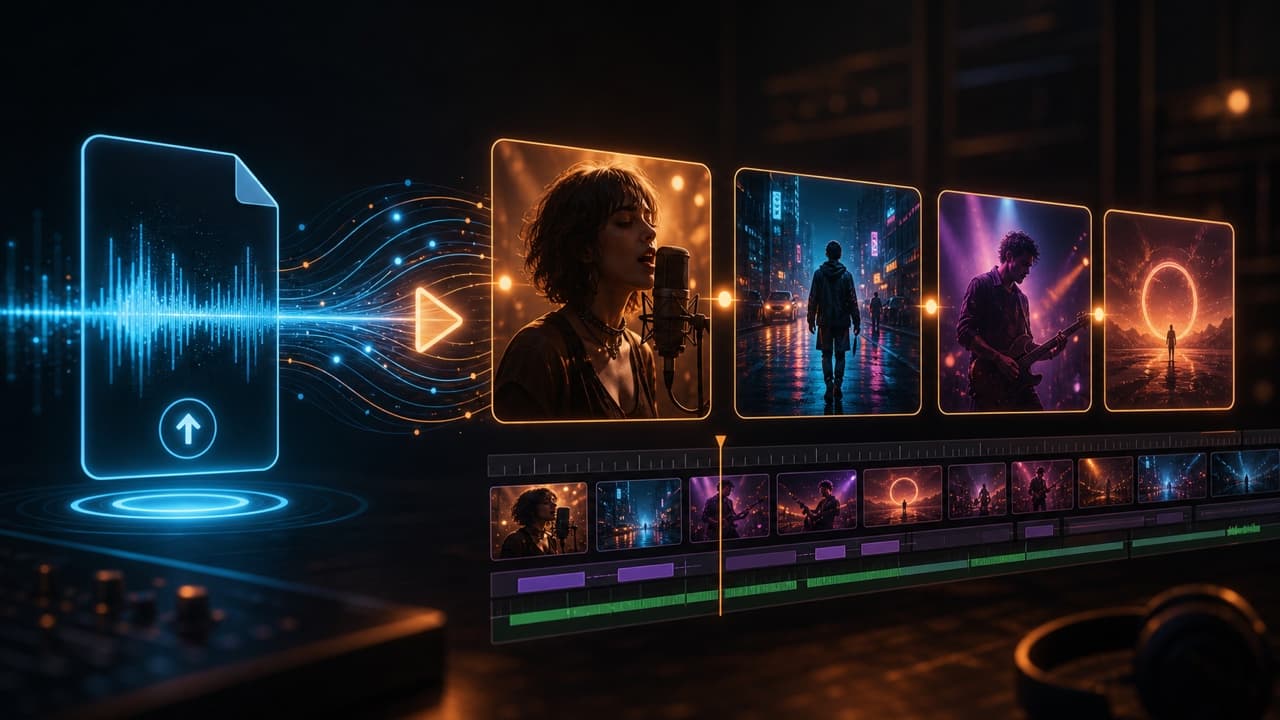
Upload an audio file. Turn it into an editable AI music video.
If you already have a song file, VibeMV can turn it into a complete AI music video instead of a simple waveform, cover-art video, or generic audio-to-video clip. Upload MP3, WAV, AAC, M4A, FLAC, or AIFF, review the music structure, generate scenes, and edit the result shot by shot.
Can you upload a WAV and still edit every shot? Yes. VibeMV accepts WAV files, analyzes the song into sections, and lets you review or replace generated shots before exporting the assembled music video.
Quick Answer: Can AI Turn an Audio File into a Music Video?
Yes. If your source is a finished song, the strongest workflow is not a generic audio-to-video converter. It is a music-aware AI music video generator from audio file input: upload the track, let the system read the song structure, choose a visual direction, generate scenes, and edit weak shots before export.
That is the job VibeMV is built for. Use VibeMV when you want a complete, editable music video from a song. Use a lighter tool when you only need a visual asset: MP3 to video for cover art plus audio, music visualizer for waveform or beat-reactive motion, audio visualizer for spectrum layouts, Spotify Canvas maker for short loops, or lyric video maker when timed text matters most.
What You Can Make from an Uploaded Song
Upload a song, generate multiple scenes, choose Scene or Lipsync for each section, and edit the music video shot by shot.
Try a chorus, drop, vocal line, or strongest 10-15 seconds before you spend credits on the full song.
Better when the job is cover art, waveform, spectrum, a DJ loop, or a quick demo asset.
Better when readable lyrics and timing matter more than generated scenes.
This page is the audio-file workflow for "music to video AI" searches, "song to video AI" searches, "MP3 to music video" searches, and "AI music video generator from audio" searches. For a broader finished-song guide, read How to Turn a Song into a Music Video with AI. If the source song was made in Suno or Udio, use the Suno song-to-video or Udio song-to-video guide first.
Example: From Audio File to AI Music Video
The sample below starts from an uploaded song section. It is not a static audio visualizer. It shows the kind of performance-style MV direction you can test before making a longer version.
VibeMV short AI music-video sample: an 11-second performance-style MV scene with audio.
For longer proof, see the AI music video examples page. It includes performance, Lipsync, dance hook, and long-form story output so you can compare real VibeMV examples before spending credits on your own song.
How the Audio-to-MV Workflow Works
Start with MP3, WAV, AAC, M4A, FLAC, or AIFF. You do not need a separate vocal stem for the first pass.
Use the full track or start with a hook, chorus, drop, or vocal moment if you want to test the direction first.
Good music videos need structure: intro, verse, chorus, bridge, drop, or outro moments should not all look the same.
Use Scene for movement, mood, and instrumental sections. Use Lipsync when a vocal section should feel performed.
Replace weak scenes, adjust prompts, and keep the strongest shots instead of accepting one opaque render.
Use 16:9 for YouTube-style releases or 9:16 for TikTok, Reels, Shorts, and vertical teasers.
The practical difference is control. A generic AI video model can make good clips, but you usually handle music sync and assembly yourself. VibeMV keeps the song, scenes, mode choices, and music-video workflow in one place.
Audio File Requirements
| Item | VibeMV support | Practical advice |
|---|---|---|
| Input formats | MP3, WAV, AAC, M4A, FLAC, AIFF | Use WAV or FLAC for master exports; 320kbps MP3 is fine for many first tests |
| File size | Up to 100 MB | Compress long WAVs to high-bitrate MP3 if needed |
| Track length | 3 seconds to 7 minutes | Test the strongest section first if the song is long or expensive to render |
| Output ratios | 16:9 and 9:16 | Choose the destination before generation |
| Default resolution | 720p | Use the optional 2K version where available for important assets |
| Base model rate | 2 credits per generated second | Regeneration, images, the 2K version, or higher-cost models may add credits |
| Best use | Full AI music video from a song file | Use lighter tools for cover-art videos, loops, or waveform assets |
Credit Examples
Use credits to test the creative direction before you make the full music video.
| Project | Simple estimate | Notes |
|---|---|---|
| 11-second sample | 11 x 2 = 22 video credits | Add image or regeneration credits if needed |
| 15-second sample | 15 x 2 = 30 video credits | A practical first test for a hook or chorus |
| 30-second test | 30 x 2 = 60 video credits | Better for checking pacing across several shots |
| 3 minutes with the Base model | 180 x 2 = 360 video credits | Before starting images, regeneration, the 2K version, or higher-cost models |
| 5 minutes with the Base model | 300 x 2 = 600 video credits | Good for longer songs only after the visual direction is proven |
If you are new, use the free starter credits to answer one question first: does this section of my song look like the start of a real MV? If yes, make the full version. If not, change the section, image direction, or prompt before spending more.
Full AI Music Video vs Visualizer vs MP3-to-Video
Not every audio file needs a full generated MV. Pick the tool by the job.
| Need | Better starting point | Why |
|---|---|---|
| A complete music video from a finished song | AI music video generator | Generated scenes, section planning, optional Lipsync, shot-by-shot editing |
| Cover art plus audio | MP3 to video converter | Fast file for demos, uploads, and simple promo use |
| Waveform, spectrum, or beat-reactive motion | Music visualizer | Lightweight visual motion without full music-video generation |
| Browser-based waveform or spectrum layouts | Audio visualizer video maker | Better when you need a clean visualizer asset |
| Timed lyrics | Lyric video maker | Better when lyric readability matters more than generated scenes |
| Spotify-style short loop | Spotify Canvas maker | Better for short vertical loop planning |
For a deeper decision guide, read Music Video Generator vs Music Visualizer.
Audio Prep Checklist
- Export the cleanest file you have. WAV or FLAC is best; 320kbps MP3 is a practical default.
- Avoid clipped masters and noisy exports. Bad audio can make section and vocal detection less reliable.
- Keep the vocal clear if you plan to use Lipsync. Heavy effects, vocoder, or buried vocals can reduce accuracy.
- Trim long silence unless you intentionally want visuals there. Silence still consumes generation time and credits.
- Choose the aspect ratio before rendering. Switching between 16:9 and 9:16 later usually means generating again.
Common Problems
Upload fails
Check the format, duration, and size first. Use MP3, WAV, AAC, M4A, FLAC, or AIFF; keep the file between 3 seconds and 7 minutes; and keep it under 100 MB. If the file plays locally but still fails, re-export it from your DAW or convert it to a clean MP3 or WAV.
The generated scenes do not follow the song
Start with a clearer section. Hooks, choruses, drops, and vocal moments are easier to judge than long intros or sparse transitions. If one scene is weak, regenerate that shot instead of rebuilding the whole project.
Lipsync does not fit the vocal
Use Lipsync only where it helps. Vocal sections need a suitable character image and a clear vocal line. For instrumentals, transitions, drops, or heavily processed vocals, Scene often looks better.
I only need a simple video file
Use the MP3 to video converter, music visualizer, or audio visualizer video maker. A full AI MV is worth it when you want generated scenes and editing control, not just an audio upload with a visual layer.
FAQ
Can AI turn an audio file into a music video?
Yes. A music-specific AI music video generator can start from an uploaded MP3, WAV, AAC, M4A, FLAC, or AIFF file, analyze the song structure, and generate editable video scenes around the track. That is different from a generic audio-to-video tool for podcasts, voiceovers, or static cover-art videos.
Can I make a music video from just an MP3 file?
Yes. VibeMV accepts MP3 files as well as WAV, AAC, M4A, FLAC, and AIFF. A clean 320kbps MP3 is usually fine for a first test, while WAV or FLAC is better when you have the master export.
Which tools can turn an audio file into a music video?
Use VibeMV when you want a full, editable AI music video from a song file. Use MP3-to-video, music visualizer, audio visualizer, Spotify Canvas, or lyric video tools when you only need cover art, waveform, spectrum, short loops, or timed lyrics.
Is an AI music video from audio the same as a visualizer?
No. A visualizer usually adds waveform, spectrum, cover art, or beat-reactive motion to audio. A full AI music video creates multiple generated scenes around the song and can include optional Lipsync sections.
What audio formats and limits does VibeMV support?
VibeMV supports MP3, WAV, AAC, M4A, FLAC, and AIFF files from 3 seconds to 7 minutes, up to 100 MB. It supports 16:9 and 9:16 output, 720p default resolution, and an optional 2K version where available.
How many credits does an audio-file music video use?
The Base model starts at 2 credits per generated second. A short 15-second test is about 30 video credits before starting images or regeneration. Three minutes of Base model video is about 360 video credits before extras.
Do I need to separate vocals before upload?
No. Upload the complete mixed audio file. VibeMV performs vocal detection internally and lets you use Lipsync for vocal sections and Scene for beat-synced instrumental visuals.
Should I use a full AI music video generator or an MP3-to-video tool?
Use a full AI music video generator when you want generated scenes, section-level direction, optional singing performance with Lipsync, and a finished music video. Use an MP3-to-video tool when you only need a simple video file with cover art and audio.
Start from Your Audio File
The simplest path is to upload a clean song file, test a strong section, edit the weak shots, and only then commit credits to the longer version.
Start with the AI music video generator or use a lightweight music visualizer if you only need a fast audio-reactive asset.
Related Guides
More Posts
DistroVid Spotify Music Video Guide (2026)
Review DistroVid pricing, Spotify eligibility, file requirements, delivery steps, timing, rights, and the cases where another route is better.
How to Upload a Music Video to Spotify
Choose the right Spotify delivery route, follow the upload steps, and prepare a music video with the correct format, rights, and metadata.
Spotify Canvas vs Music Video: Which Do You Need?
Compare Spotify Canvas and full music videos by purpose, format, access, upload path, and effort so you can make the right release asset first.